


Connect WPForms to Any API
Send WPForms submissions directly to any API endpoint. No subscriptions. No external routing.
What Is Connect WPForms to Any API?
Connect WPForms to Any API is a free WordPress plugin that allows you to send WPForms submissions directly to any API endpoint.
When a user submits a form, the plugin immediately sends the data to the endpoint you define using POST or GET. You control authentication, field mapping, and the JSON structure.
The data moves directly from your WordPress site to your API.
There is no external platform required. There are no submission limits.
Install the Plugin
If you are already using WPForms and need direct API delivery, you can install the plugin from WordPress.org.
Plugin page:
https://wordpress.org/plugins/connect-wpform-to-any-api/
The plugin is free and works alongside your existing WPForms setup.
What the Plugin Supports
The free version supports POST and GET requests, Basic Authentication, and Bearer Token authentication. You can configure unlimited API connections and send unlimited submissions.
Each submission is logged inside WordPress. You can see exactly what was sent to the API and what response was returned. This makes troubleshooting easier because everything is visible in one place.
The plugin does not modify your forms. It simply connects WPForms directly to your chosen API endpoint.
How to Connect WPForms to an API (Step-by-Step)
Below is the complete setup process.
Step 1: Install and Activate

From your WordPress dashboard, go to Plugins → Add New.
Search for “Connect WPForms to Any API”, install it, and activate it.
Your existing WPForms forms remain unchanged.
Step 2: Create a New API Configuration
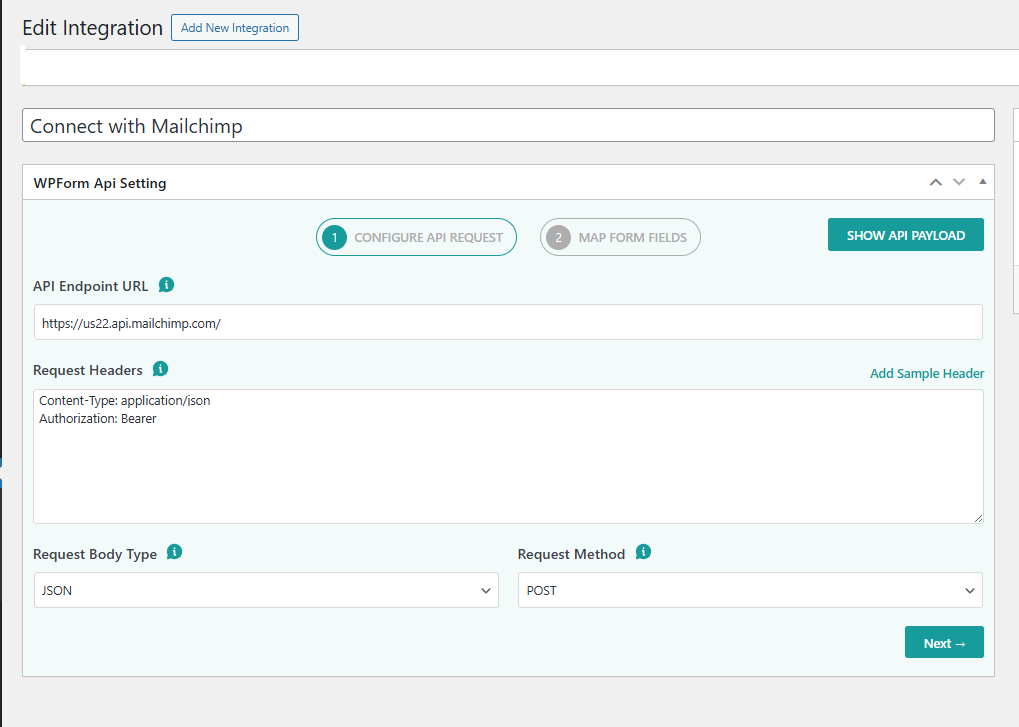
After activation, open the plugin settings and create a new API configuration.
You will be prompted to enter your API endpoint and choose the request method.
Step 3: Enter the API Endpoint
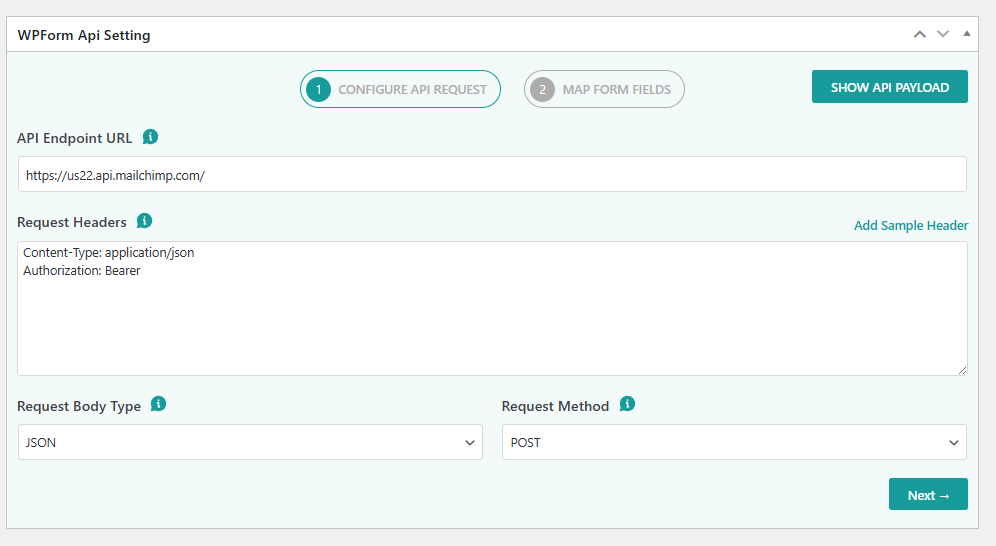
Provide the full URL of the API endpoint where the form data should be sent.
This can be:
- A CRM API endpoint
- A backend service URL
- An internal system endpoint
As long as the API accepts POST or GET requests, the plugin can send data to it.
Step 4: Select Authentication
Choose the authentication method required by your API:
- Basic Authentication
- Bearer Token
Enter the credentials exactly as defined in your API documentation.
Step 5: Map WPForms Fields to API Parameters
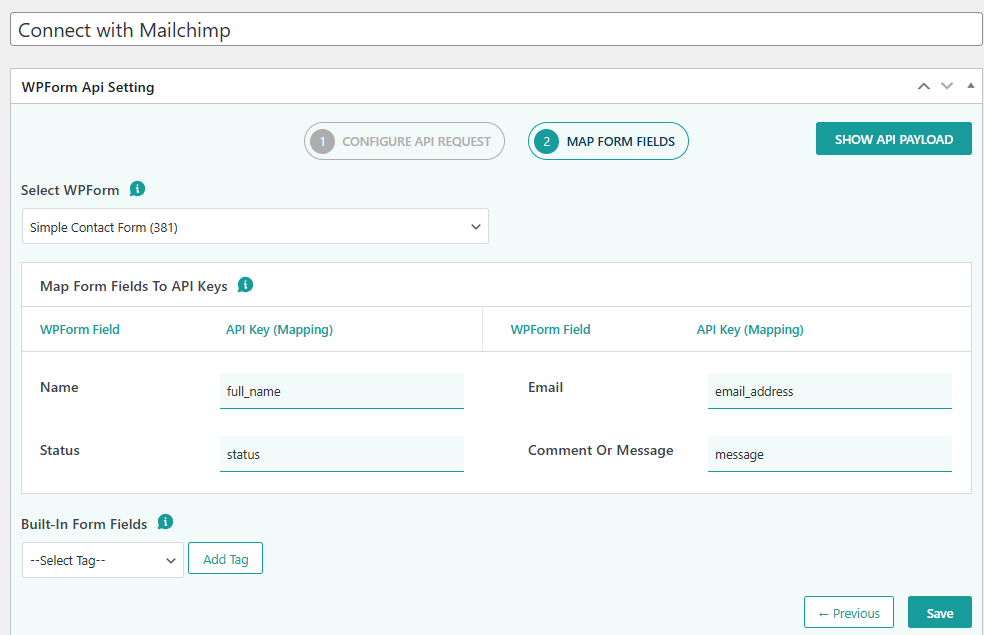
Next, map each WPForms field to the corresponding API parameter.
For example:
Name → full_name
Email → email_address
Message → inquiry_text
You define exactly how the data is structured before it is sent. The plugin supports fixed JSON formatting to keep payloads predictable.
Step 6: Submit a Test Entry
Submit the form once to test the configuration.
The plugin immediately sends the request to your API endpoint.
Step 7: Review the Logs
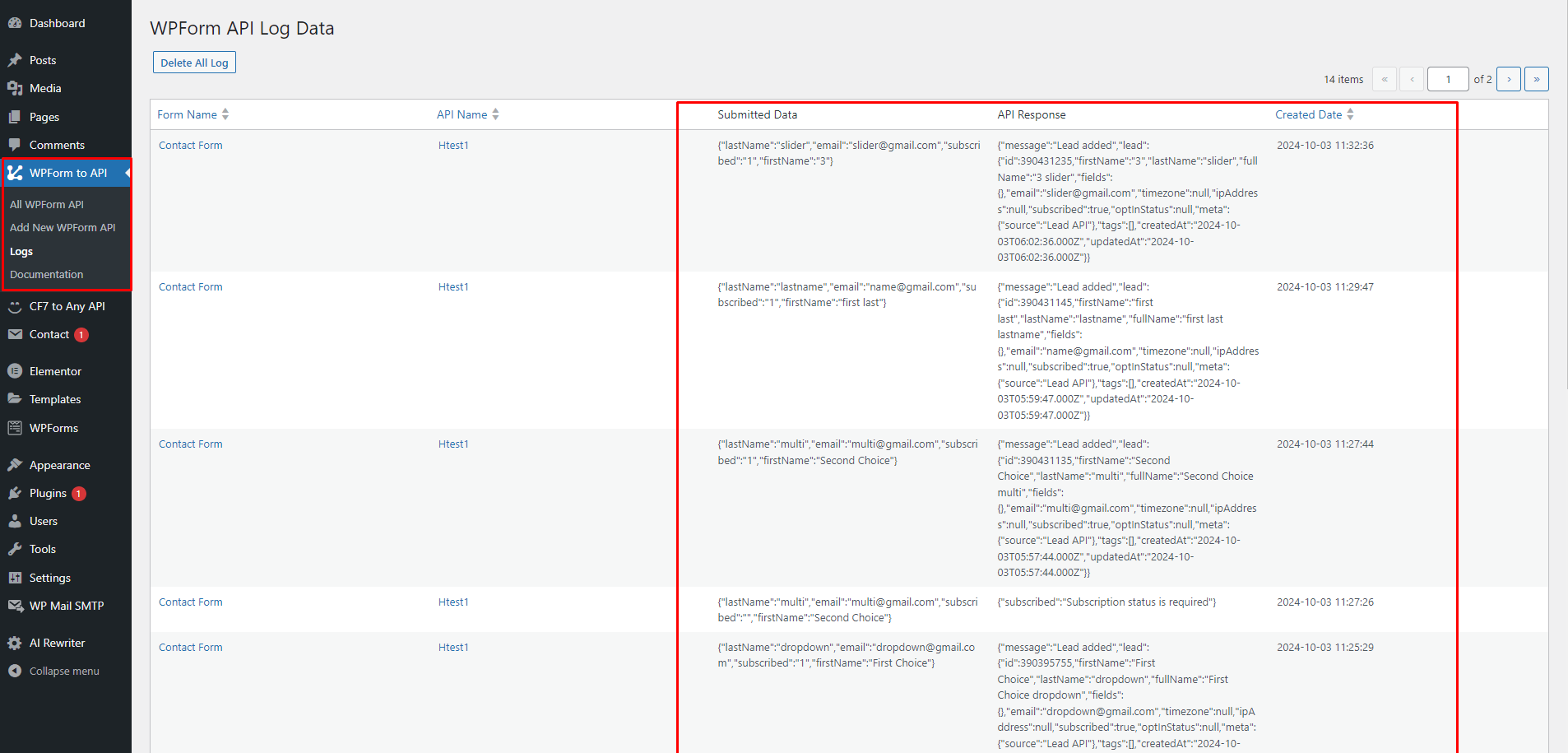
Inside WordPress, you can view:
- The exact payload sent
- The response returned by the API
- Whether the request succeeded or failed
This makes validation and debugging straightforward.
When to Use This Plugin
This plugin is designed for direct form-to-API delivery.
It is commonly used for:
- Sending WPForms leads directly to a CRM
- Connecting forms to internal dashboards
- Pushing submissions to ERP or backend systems
- Replacing simple automation setups that only forward data
- Reducing recurring automation tool costs
If your goal is to send form data directly to an API endpoint without relying on external platforms, this plugin is well suited for that task.
Comparison: When to Use This Plugin
Compared to WPForms Webhooks Addon
WPForms Webhooks can send data to an endpoint. However, logging and payload control are limited.
Connect WPForms to Any API focuses specifically on direct API delivery. It includes built-in request and response logs and a dedicated mapping interface for precise field control.
If you need clearer visibility into what was sent and what the API returned, along with explicit field mapping, this plugin is purpose-built for that workflow.
Compared to Zapier or Make
Zapier and Make are designed for multi-step workflows across different applications.
They require external accounts and typically operate on recurring pricing. They are well suited for automation across multiple services.
Connect WPForms to Any API runs entirely inside WordPress. It does not require an external account. It is intended for direct form-to-API delivery when no additional workflow logic is required.
If your setup is simply:
WPForms → Automation Tool → API
and no additional processing is involved, sending data directly from WordPress to your API can simplify the structure and reduce external dependencies.
Data Handling and Security
Form data is sent directly from your WordPress installation to the API endpoint you configure.
The plugin does not route submissions through external servers.
Authentication is handled using Basic or Bearer headers as defined by your API.
Request and response logs are stored locally inside WordPress.
What the Free Plugin Does Not Include
The free version does not support OAuth 2.0 authentication, JWT-based authentication, or deeply nested JSON builders.
If your API requires advanced authentication or complex payload structures, custom implementation support may be needed.
Install Connect WPForms to Any API
If you use WPForms and need direct API delivery inside WordPress, you can install the plugin from WordPress.org.
Install here:
https://wordpress.org/plugins/connect-wpform-to-any-api/
Also Using Contact Form 7?
If your website uses Contact Form 7 instead of WPForms, we offer a separate plugin called Contact Form 7 to Any API.
CF7AA allows you to:
- Send Contact Form 7 submissions directly to any API
- Build simple or nested JSON payloads
- Configure multiple API connections
- Use more advanced authentication scenarios
- View request and response logs inside WordPress
It is designed for projects that require more complex payload structures.
Learn more here:
https://contactformtoapi.com/
If you work across both WPForms and Contact Form 7 projects, each plugin is built specifically for its respective form system.
Frequently Asked Questions
1. Is Connect WPForms to Any API free?
Yes. The plugin is completely free. There are no submission limits, no API limits, and no subscription plans.
2. How do I connect WPForms to an API?
Install the plugin, add your API endpoint, choose POST or GET, select authentication (Basic or Bearer), map your fields, and submit a test entry. The plugin sends the data directly from WordPress to your API.
3. Can WPForms send data directly to an API without Zapier?
Yes. This plugin allows WPForms to send submissions directly to any API endpoint without using Zapier or other external automation tools.
4. Does this plugin work with custom or internal APIs?
Yes. As long as your API accepts POST or GET requests with Basic or Bearer authentication, it will work.
5. Can I connect WPForms to a CRM using its API?
Yes. You can send form data directly to CRM APIs such as HubSpot, Zoho, Salesforce, or any system that provides a REST endpoint.
6. Do I need coding knowledge to use this plugin?
No coding is required for standard configurations. You set up the endpoint, authentication, and field mapping through the WordPress interface.
7. Where can I see if my API request was successful?
The plugin stores request and response logs inside WordPress. You can review the exact payload sent and the response returned by your API.
8. What authentication methods are supported?
The plugin supports Basic Authentication and Bearer Token authentication.
9. Does the plugin support OAuth 2.0?
OAuth 2.0 is not supported within the plugin interface. If your API requires OAuth 2.0 or advanced JSON configurations, you can contact the team for custom implementation support at:
10. Why is my WPForms data not reaching the API?
Common causes include:
- Incorrect endpoint URL
- Invalid authentication credentials
- Field names not matching API parameters
- API-side validation errors
You can check the built-in logs to see the exact error returned by your API.


